PDF to PowerPoint, Right in Your Browser
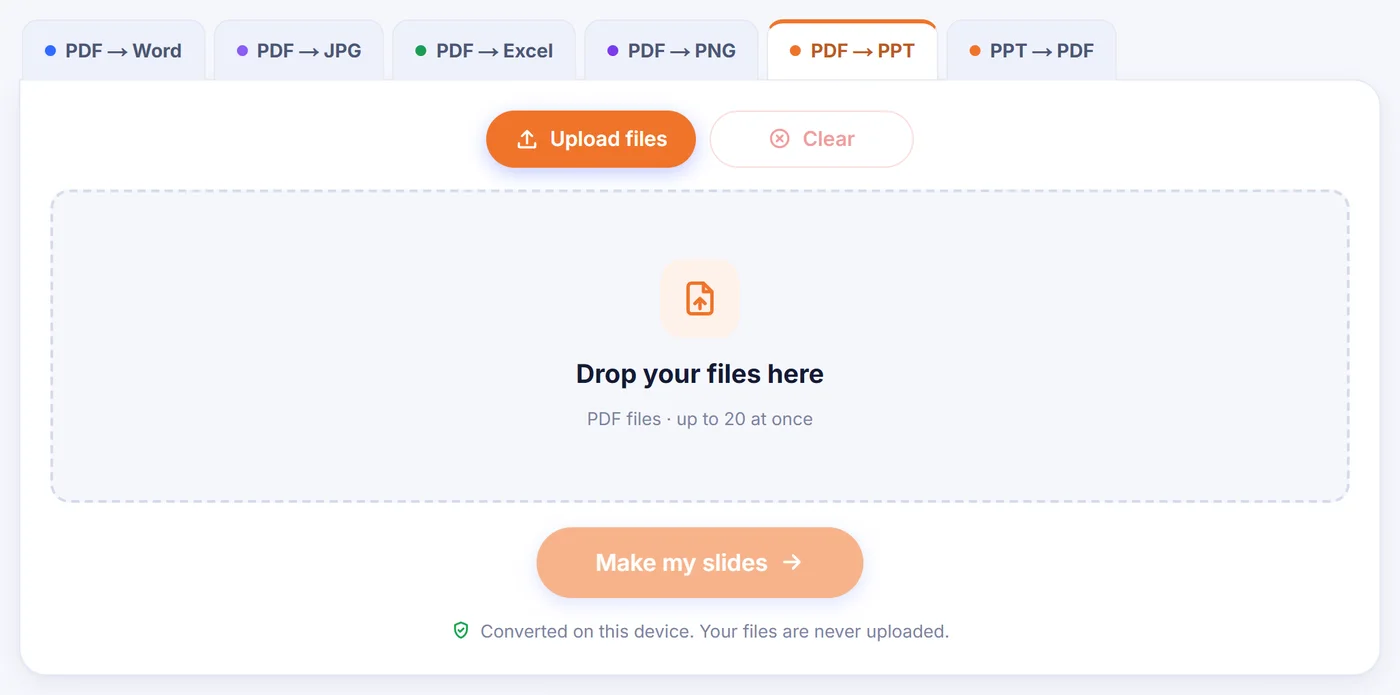
This PDF to PowerPoint converter turns each page into a slide with real, editable text boxes, then saves a .pptx file. The work happens on your own device, so the document is never sent anywhere.
Converted on this device. Your files are never uploaded.
How it works
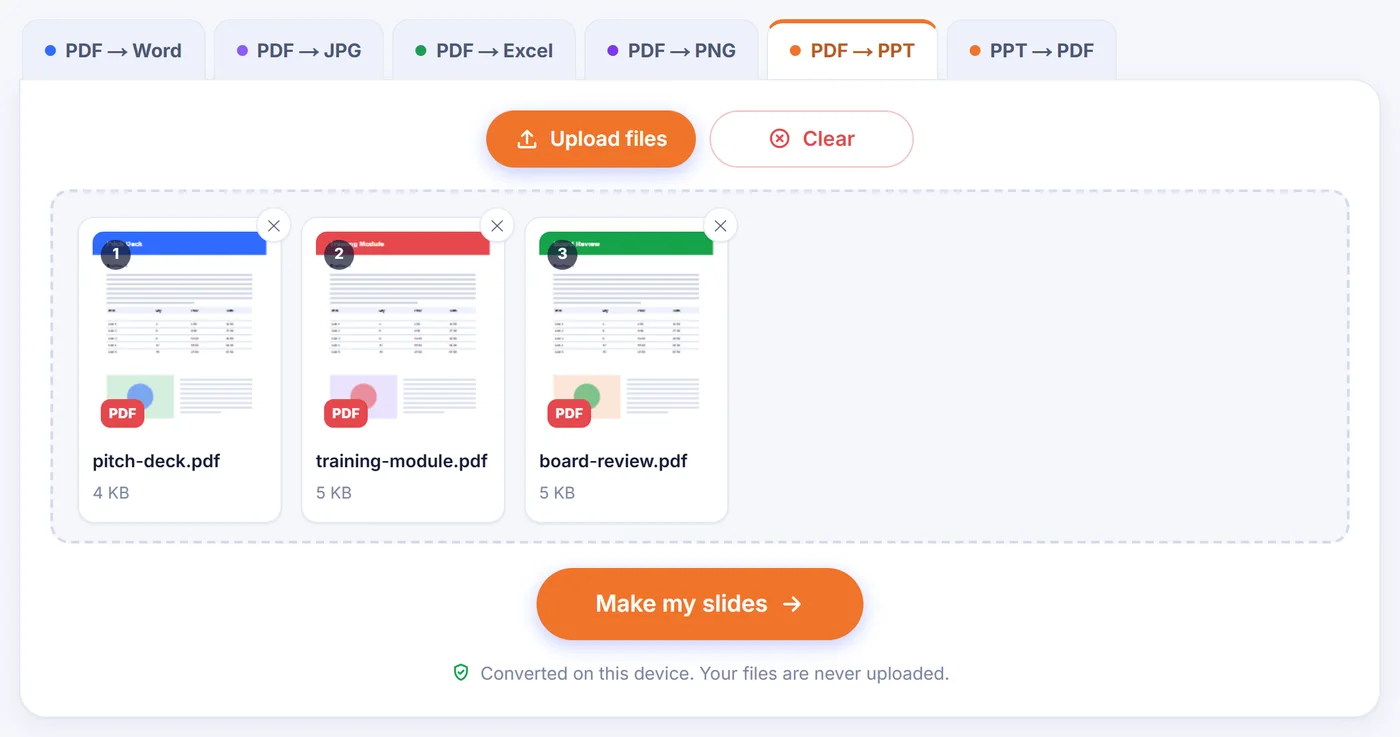
Drop in the PDF
Add one document, or up to 20 at a time if each should become its own deck.
Pick Editable or Exact
Look at the preview of slide 1, choose an image quality and, for a single file, the pages you want.
Save the .pptx
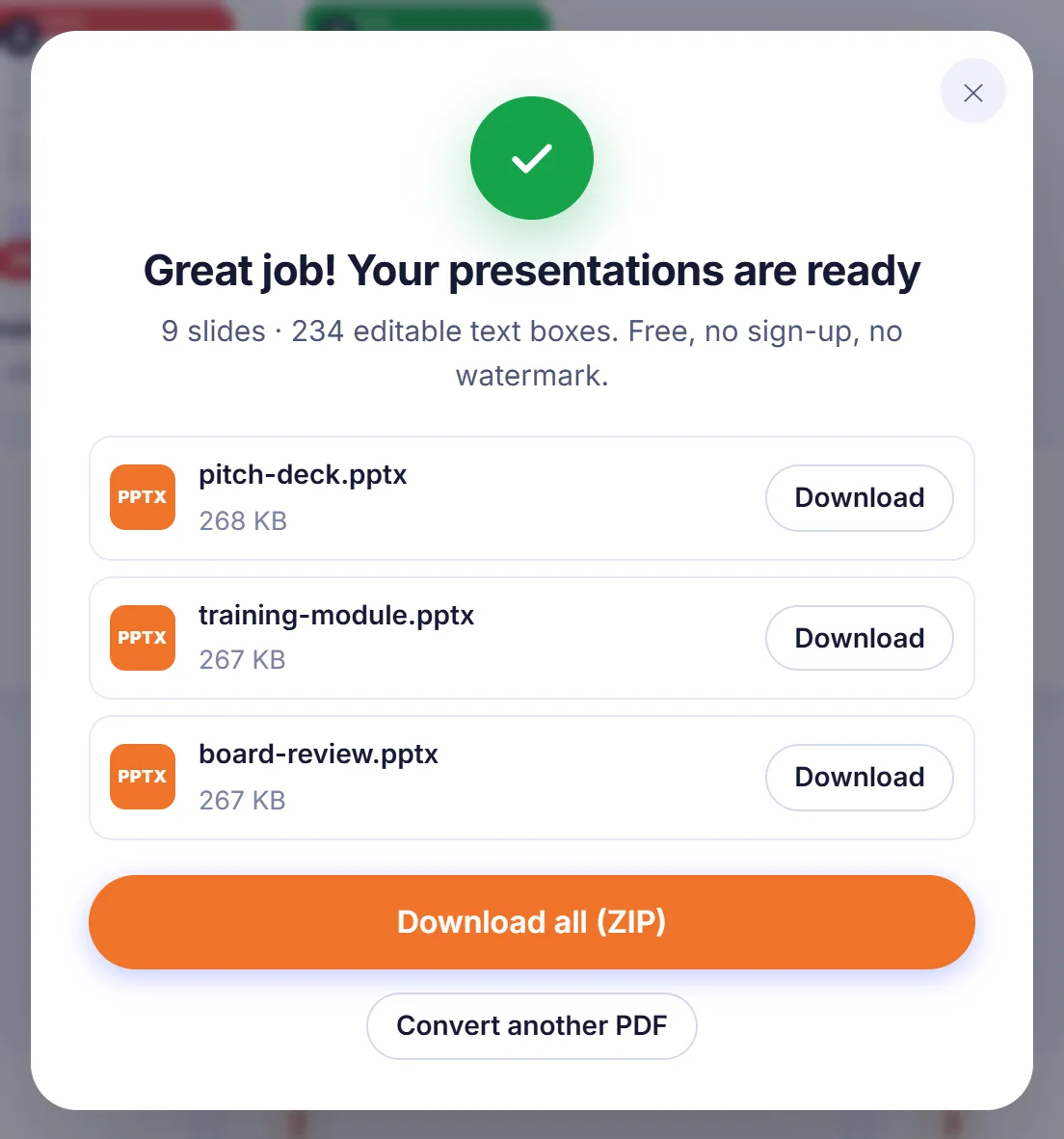
Press the convert button, wait for the progress bar and download the presentation (with several PDFs, save each deck or all of them in one ZIP).
Why people convert PDF to PowerPoint
A PDF is built for reading, not for presenting. Somebody sends you a report, a lecture handout or a sales one-pager, and you need to stand in front of a room with it tomorrow. Retyping each page into a blank deck takes an evening. Converting the file gives you a starting deck in a minute: every page becomes one slide, and you spend your time trimming wording, adding animations or dropping in your own slides between the converted ones.
It also helps when the original deck is gone. Plenty of presentations only survive as the PDF that was emailed after the meeting. Turning that PDF back into a .pptx is often the quickest way to reuse last year's slides with new figures.
The two ways a page can become a slide
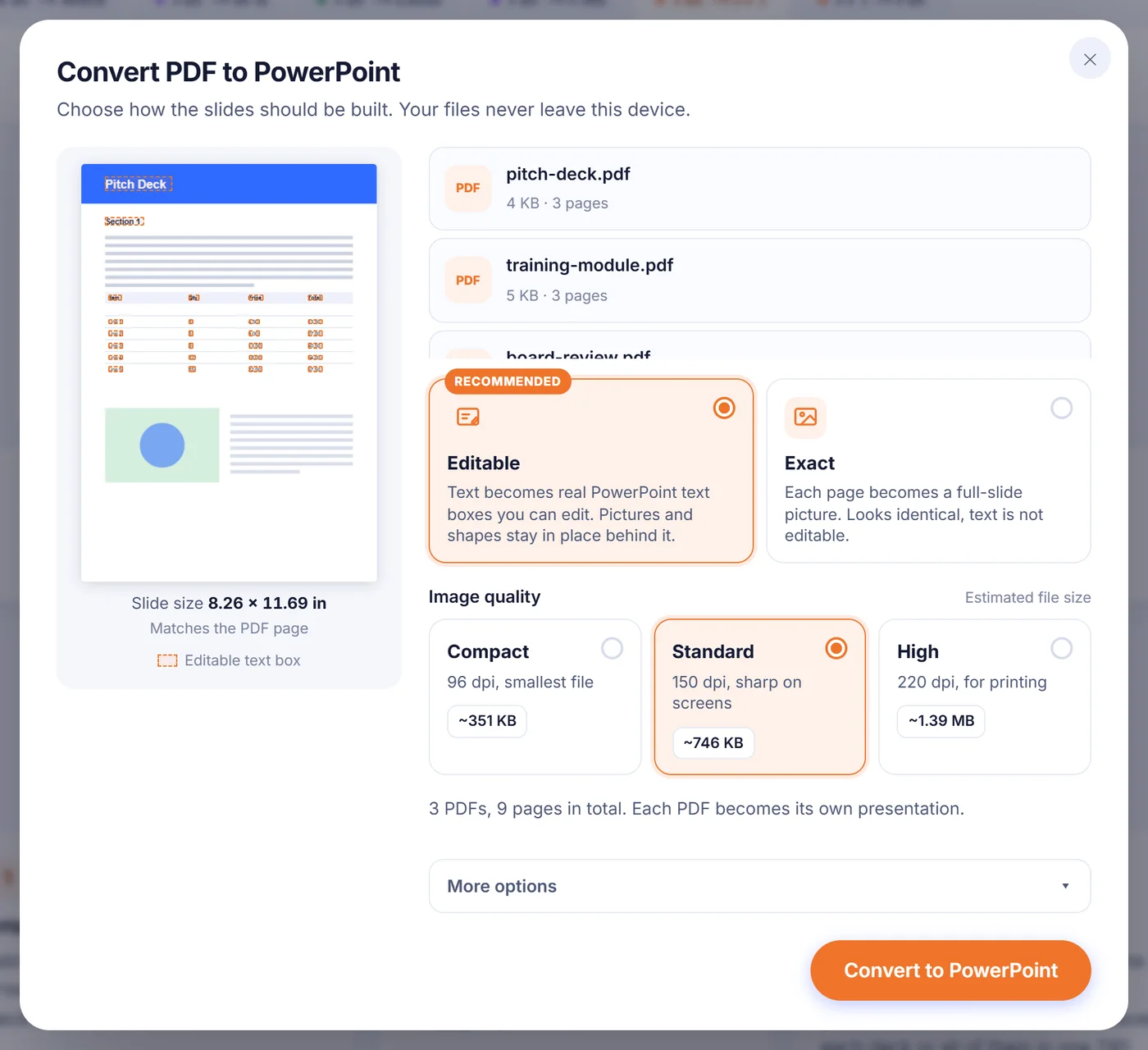
After you add a file, an options window opens with a small preview of the first slide. Here you choose how the slides are built.
Editable (the default)
Each page that contains text is drawn twice inside your browser: once as it really looks and once with the letters left out. The letter-free version becomes the slide background, so photos, logos, coloured panels and table borders stay exactly where they were. On top of it, the converter places genuine PowerPoint text boxes, positioned from the PDF coordinates and carrying the font name, size, bold, italic, rotation and the colour measured from the page itself. If the page behind the text is one flat colour, no picture is used at all and the slide simply gets that background colour, which keeps the file light. In the preview of the first slide, every future text box is outlined, so you can see what will be editable before anything is built.
Exact
Every page is placed on its slide as one full-size picture. It looks identical to the PDF, but you cannot click into the words. This suits pages full of diagrams, artwork or handwriting, and decks you only want to show, not change.
Options worth knowing
- Image quality. Compact renders at 96 dpi for the smallest file, Standard at 150 dpi looks sharp on screens, and High at 220 dpi is meant for printing. Next to each choice you see an estimated file size, worked out by actually rendering your first page at that quality.
- Pages. With one PDF you can type a selection such as 2-4, 9 and only those pages become slides. With several PDFs, every page of every file is converted.
- Slide size. Under "More options", the default follows the shape of the PDF's most common page size, so nothing is stretched. You can switch to widescreen 16:9 or classic 4:3 instead; pages that do not fit are centred on the slide.
- Text boxes. One box per paragraph is easier to edit. One box per line places text most precisely, which helps with forms and tightly packed layouts.
- Clickable links. On by default. Web addresses, email and phone links, and links that jump to another page keep working in the slide show. A jump to a page you left out is dropped rather than pointing nowhere.
- Speaker notes. Off by default. The text of each page can be copied into that slide's notes, which keeps Exact slides searchable.
- Standard Office fonts only. Normally each text box asks for the font named in the PDF. Turn this on and rare typefaces are swapped for Arial, Times New Roman or Courier New, so the deck displays the same on a colleague's computer.
Your last choices (except the page selection) are remembered in this browser, so the next conversion starts the way you left it.
What comes through, and what to expect
Positions, colours and text styling carry over well. The usual difference is width: when the PDF uses a font that is not installed on your machine, PowerPoint substitutes a similar one and a line can run slightly longer or shorter. The text boxes get a little spare room for that reason, but a quick glance over each slide is still a good idea.
Charts and tables do not turn into native PowerPoint charts or tables. Their lines, bars and shading stay in the background picture, while the labels and cell text become separate text boxes you can edit. If you need a chart whose numbers you can change, rebuild it in PowerPoint and use the converted slide as a visual guide.
Some text deliberately stays in the picture: vertical Asian writing, mirrored text and letters drawn as shapes rather than as a font. Leaving them in the image means nothing goes missing and nothing appears twice. Values typed into form fields are kept too, drawn into the background picture.
Scanned, locked and very large PDFs
Scans. A scanned page is a photograph, so its slide is a photograph in both modes. This tool does not run text recognition. If the scan already contains a hidden OCR layer, that text is not laid over the picture (it would show twice), but turning on speaker notes copies it into the notes so you can still search and copy it.
Password protection. When a file is locked, you are asked for its password. It is used only on your device to open the PDF; if you do not have it, choose to skip that file and the others carry on.
Big documents and phones. Each page is rendered at no more than about six million pixels, which keeps phones and Safari within their limits. If a long, image-heavy file still runs out of memory, choose Compact quality, convert fewer pages at a time, or switch to a laptop. A single damaged page does not stop the job: its slide shows a short note saying so, and the rest of the deck is built normally. You can also cancel at any point while the progress bar runs.
Your files and where they end up
Each presentation keeps the name of its PDF, so budget-review.pdf becomes budget-review.pptx. If two files share a name, the second gets a number added. With several PDFs you can download the decks one by one or all together in a ZIP. The .pptx opens in PowerPoint and imports into Google Slides, Keynote and LibreOffice Impress.
Nothing here is uploaded. The page loads the conversion code once, then reads, renders and packages your PDF inside the browser tab using your computer's or phone's own processor. There is no account, no email address, no watermark on the slides, and no copy left behind: close the tab and the files are gone from memory.
Frequently asked questions
How do I convert a PDF to PowerPoint and still edit the text?
Keep the Editable mode selected before converting. The words become real PowerPoint text boxes over a background picture of the page, so you can retype, recolour or resize them.
Is this PDF to PPT converter really free?
Yes. There is no sign-up, no watermark and no paid tier; the conversion runs in your own browser.
Can I convert only some pages of a PDF into slides?
Yes, when you convert one PDF. Choose "Choose pages" and type numbers or ranges such as 1-3, 7; only those pages become slides.
Why does my scanned PDF come out as pictures in PowerPoint?
A scan is an image of text, and this tool does not perform OCR. If the scan has a hidden text layer, switch on speaker notes to get that text in the notes of each slide.
Can I make the slides 16:9 instead of the PDF page size?
Yes. Open "More options" and set Slide size to Widescreen 16:9 or Standard 4:3; each page is then centred on the slide.
Do links in the PDF still work in the presentation?
They do, as long as "Keep links clickable" is on. Web and email links open as usual, and links to other pages jump to the matching slide, provided that page was converted too.
Can I turn a confidential PDF into a PPTX without it leaving my computer?
The file is processed on your device and never sent to a server, so there is nothing stored anywhere to delete afterwards.